2 Course Setup
2.1 Install SQL Developer
To begin, you must install Oracle SQL Developer:
Download the latest version from the official Oracle site: SQL Developer Downloads
- If you are at GSU, you should download SQL Developer from the Software Center.
- For those who are not familiar with it, the Software Center is a GSU-specific application management tool for installing software on GSU-managed machines. See IIT for clarifications if you need further details.
Follow installation instructions for your operating system.
Launch SQL Developer once installation is complete.
2.2 Connect to the Oracle Database
Tip
Once connected, you can start familiarizing yourself with the database’s structure! Take a look at the Student Database Schema for an overview of the key data elements and where to find them.
Use the following steps to connect to the course Oracle database instance:
Open SQL Developer
Go to Tools → Connections
Click New Connection or the + icon
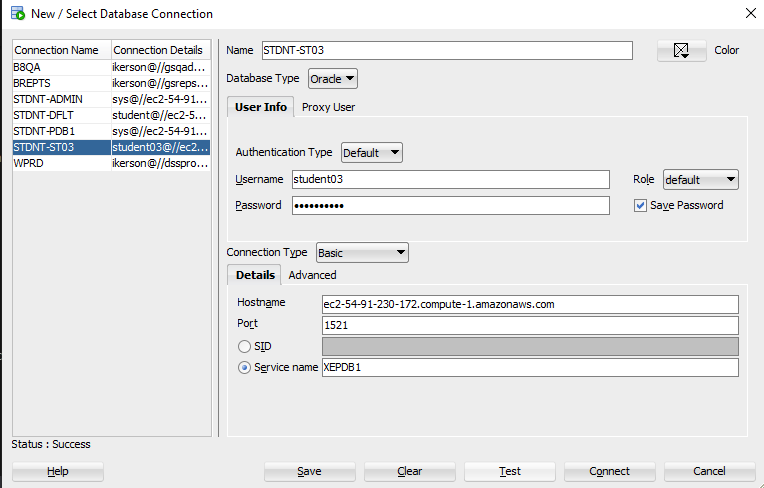
Enter the following connection information:
- Instead of
studentXXorSTDNT-STXX, you should use the numbered student account provided to you, such asstudent07. Consult with the course intructors if you need additional clarifications.
Field Value Name STDNT-STXX(or any descriptive name)Username studentXXPassword your password (check “Save Password”) Role defaultHostname ec2-54-91-230-172.compute-1.amazonaws.comPort 1521Service Name XEPDB1- Instead of
Click Test to verify the connection (should return “Success”)
Click Save to store the connection